Does QuickBooks Migration Carry Over My Attachments and Audit Trail? (No)
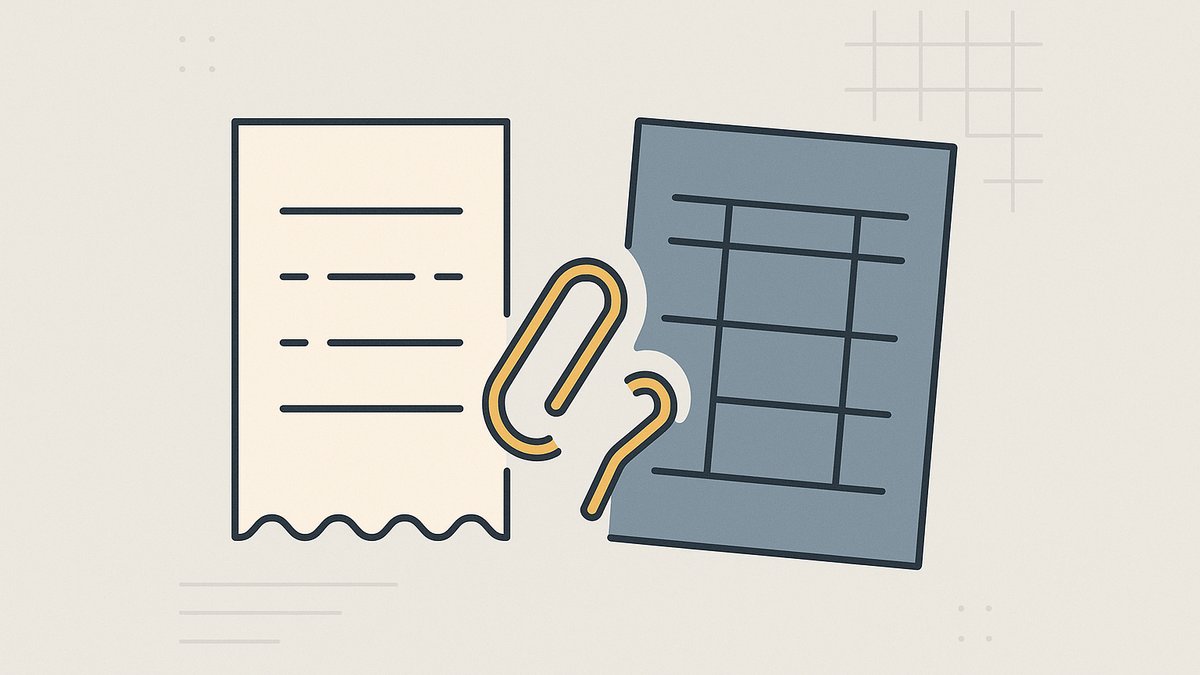
No. A standard migration into new accounting software does not carry over the links between your QuickBooks attachments and their transactions, and it does not bring your audit log across either. A migration is usually built to stand up your new books from your lists, your balances, and selected transaction history, while the receipt tied to each entry and the record of who changed what are stored inside QuickBooks and stay there when you switch.
Why these two things get left behind
Attachments and the audit trail are not ordinary rows a migration can copy. They are information QuickBooks keeps about your transactions.
An attachment is a file plus a hidden link that says which bill, expense, or invoice it supports, and therefore which date, amount, and payee it documents. You never handle that link directly, because QuickBooks resolves it for you every time you open a record. Because it lives inside the software, it is not something you carry out unless you rebuild it on purpose. We cover that mechanic in full in why QuickBooks won't export attachments linked to their transactions.
The audit log is the running history of the account: who created, edited, or deleted each entry, the before and after values, and when each user signed in. It describes what happened to your books rather than what they currently say, so a migration that copies the current state of your accounts has no place to put it. The details of pulling it are in how to export the QuickBooks Online audit log.
What QuickBooks' own exports actually hand you
The clearest evidence of how a migration treats these records is how QuickBooks' own export tools treat them. Even when a third-party tool pulls data a different way, it still has to deal with the same underlying problem: the document links and the audit history are not ordinary transaction rows that import cleanly into another accounting system.
The standard Export Data feature that sends your reports and lists to Excel leaves several record types out, including attachments, estimates, purchase orders, customer statements, and recurring templates, and it will not export a profit and loss report to CSV at all. So the export that carries your numbers does not carry your documents.
The separate bulk receipt export does give you the files, but Intuit's own documentation says they come out separated from the transactions they were attached to, leaving you to match each file back to its entry by hand. So the export that carries your documents does not carry the link to your numbers.
The audit log has its own limits. QuickBooks exports it as CSV only, 150 rows at a time, and retains it for just two years. There is no single click that pulls the whole history, and anything older than roughly 24 months has already aged out even inside a live, active company.
Put together, the linkage between attachments and transactions and the change history are exactly the two things that fall through the gaps in the built-in exports, and a migration inherits the same gaps.
What that means once you cancel QuickBooks
This would be a manageable inconvenience if the QuickBooks company stayed around. It does not. When you cancel a paid QuickBooks Online subscription, Intuit keeps the company in read-only mode for 12 months, then deletes it permanently, with no way for support to recover it. On a cancelled free trial rather than a paid plan, the window is only 90 days. Resubscribing later does not restore a deleted company; it opens an empty one.
So a common sequence ends badly. You migrate, the new software shows your balances and recent activity, you cancel QuickBooks to stop paying twice, and the read-only clock runs out. At that point the new system still has your balances, but the link that told you which receipt backed a specific transaction is gone, and so is the log that showed who touched an entry and when. When an auditor, a buyer, or a former partner later asks to see the source document for one particular payment, the answer used to be one click inside QuickBooks and now lives nowhere.
The order that keeps them: archive before you cancel
Because the linkage and the available audit log only exist while the company is still accessible, the safest time to capture them is before you cancel, not after the read-only clock has started. Archive the QuickBooks company while you still have active access, migrate whatever the new software needs to operate, then cancel once the archive is safely in hand. The same archive-first order applies to any accounting software switch, whichever tool you are moving to.
A complete archive rebuilds the two things the exports drop. For attachments, that means every file under its original name indexed back to the transaction it supports, so a future request for one document has a one-line answer instead of an afternoon of opening files. For the audit trail, it means the log exported in date batches before its two-year window truncates any further.
Doing all of that by hand is possible if you work methodically while the transactions are still readable. If you would rather hand it off, building one complete, verified archive of your QuickBooks company before you cancel is the service we run: the full ledger, every report in cash and accrual basis, every attachment still linked to its transaction, and the audit log, checked against the live books and delivered as a single download for one flat fee.
Closing a business that runs on QuickBooks Online? We build one complete, audit-ready archive of your company so you can cancel the subscription without losing a single record or receipt.
For general information only. Not tax, legal, or accounting advice. Consult your CPA or attorney for guidance on your situation.